 SPIDEV.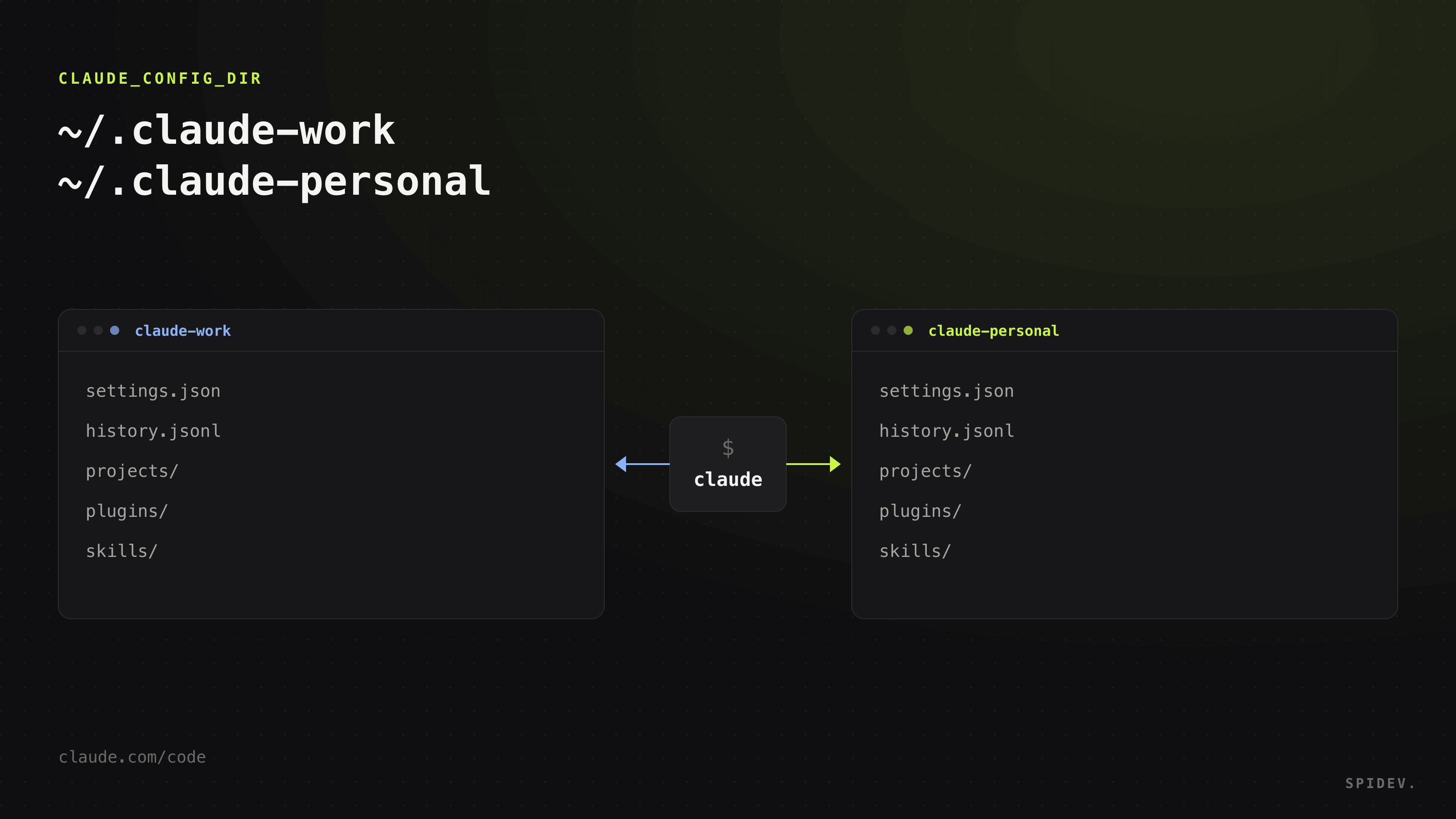
If you have a Claude account through work and a personal subscription of your own, you already know the annoying part: Claude Code holds one login at a time. Switching means logging out of one account and into the other.
And logging out costs more than it looks. Beyond the credential, /logout also resets your first-launch setup state, so the next time you start Claude Code it walks you through onboarding again. Your history, project memory and approved permissions stay on disk, but you stop working with them the moment the other account takes over.
There is a clean fix that needs no extra tooling — and it is the one Anthropic's own documentation suggests. By the end of this guide you will have two accounts living on the same machine, each with its own history, memory and permissions, and you will know exactly what gets separated, what does not, and what to do if you are on macOS.
The 30-second version
If you just want the result, it is two lines in your shell config:
1# ~/.zshrc (or ~/.bashrc on bash)2alias claude-work='CLAUDE_CONFIG_DIR=~/.claude-work claude'3alias claude-personal='CLAUDE_CONFIG_DIR=~/.claude-personal claude'
Reload your shell with source ~/.zshrc, run each alias once, and /login with the matching account. Done.
The rest of this article covers why it works, how to confirm the two accounts really are separate, the macOS detail almost no guide mentions, and what to do when that detail affects you.
What Claude Code keeps per account
By default, Claude Code works against a single directory: ~/.claude (on Windows, %USERPROFILE%\.claude). That directory does not just hold your login — it holds nearly all of your accumulated context.
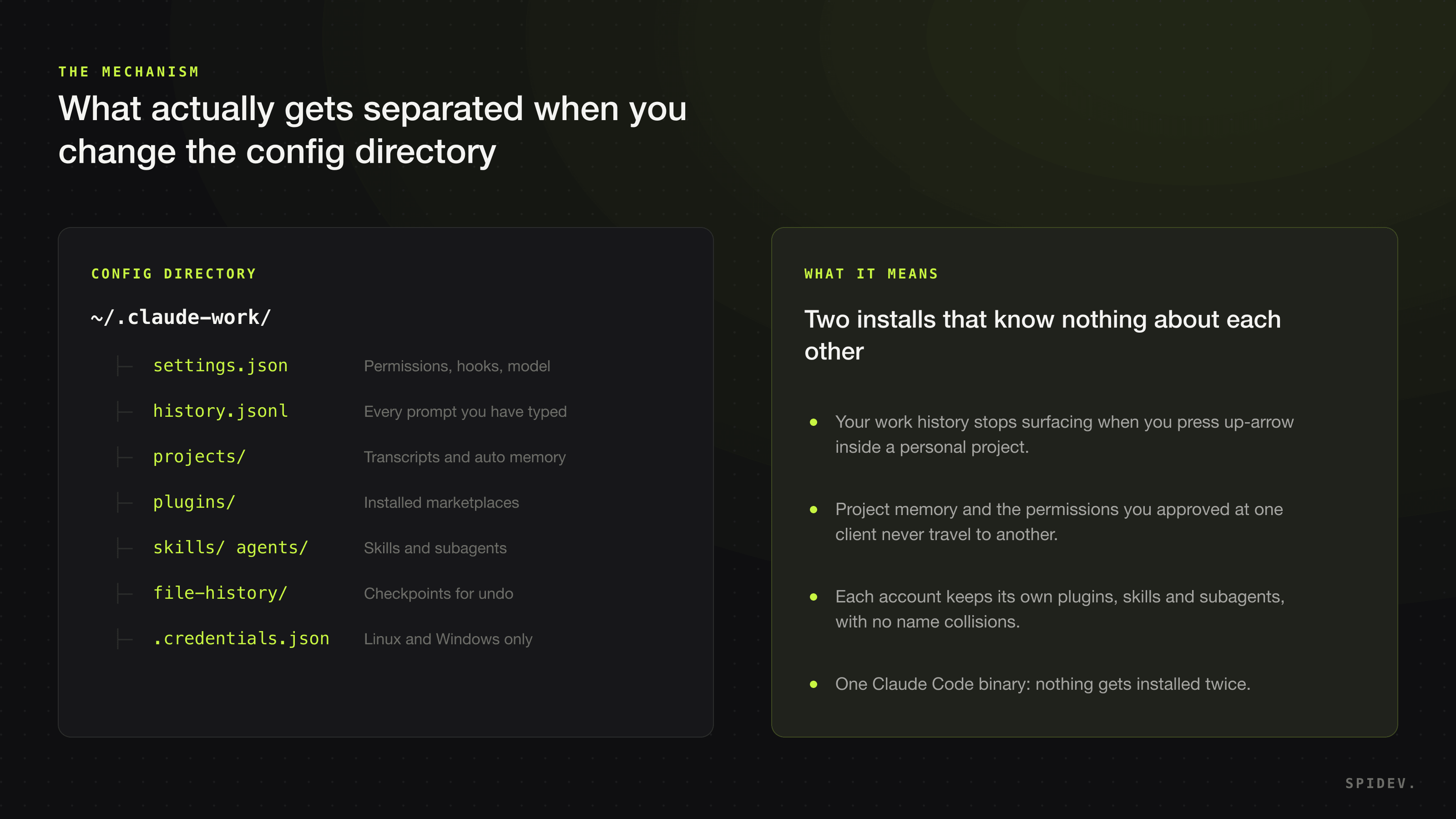
The CLAUDE_CONFIG_DIR environment variable changes which directory that is. The environment variables reference puts it this way:
Override the configuration directory (default: ~/.claude). All settings, session history, and plugins are stored under this path, as are credentials on Linux and Windows; on macOS, credentials are in the system Keychain. Useful for running multiple accounts side by side.The full list of what lives in there is worth reading, because it explains why this feels so much cleaner than logging out and back in:
settings.json— permissions, hooks, environment variables and your default model.history.jsonl— every prompt you have typed, with its project. This is what up-arrow recalls.projects/— the full transcript of every session, plus the auto memory Claude writes to itself across sessions.plugins/,skills/,agents/,commands/,rules/— everything you have installed or written to extend Claude Code.file-history/— pre-edit snapshots of the files Claude changed, which is what makes checkpoint restore work..credentials.json— your login, on Linux and Windows only. We come back to this shortly.
One Claude Code binary, as many independent states as you want directories. Nothing gets installed twice.
The setup, step by step
Step 1 — Add the aliases
On zsh (the default shell on macOS) the file is ~/.zshrc. On bash, ~/.bashrc. The two lines are identical either way:
1alias claude-work='CLAUDE_CONFIG_DIR=~/.claude-work claude'2alias claude-personal='CLAUDE_CONFIG_DIR=~/.claude-personal claude'
You do not need to create the directories first — Claude Code creates them on the first run with that variable set. Reload the shell:
1source ~/.zshrc
Step 2 — Log in once per alias
Launch each one and run /login with the account it belongs to. This is the only time you have to do it.
1claude-work2# inside Claude Code: /login → your work account34claude-personal5# inside Claude Code: /login → your personal subscription
Step 3 — Verify the separation actually happened
This is the step almost every guide skips, and the only one that tells you whether the trick worked on your machine. Inside each alias, run /status: it shows the login method, the organization and the email behind the active session.
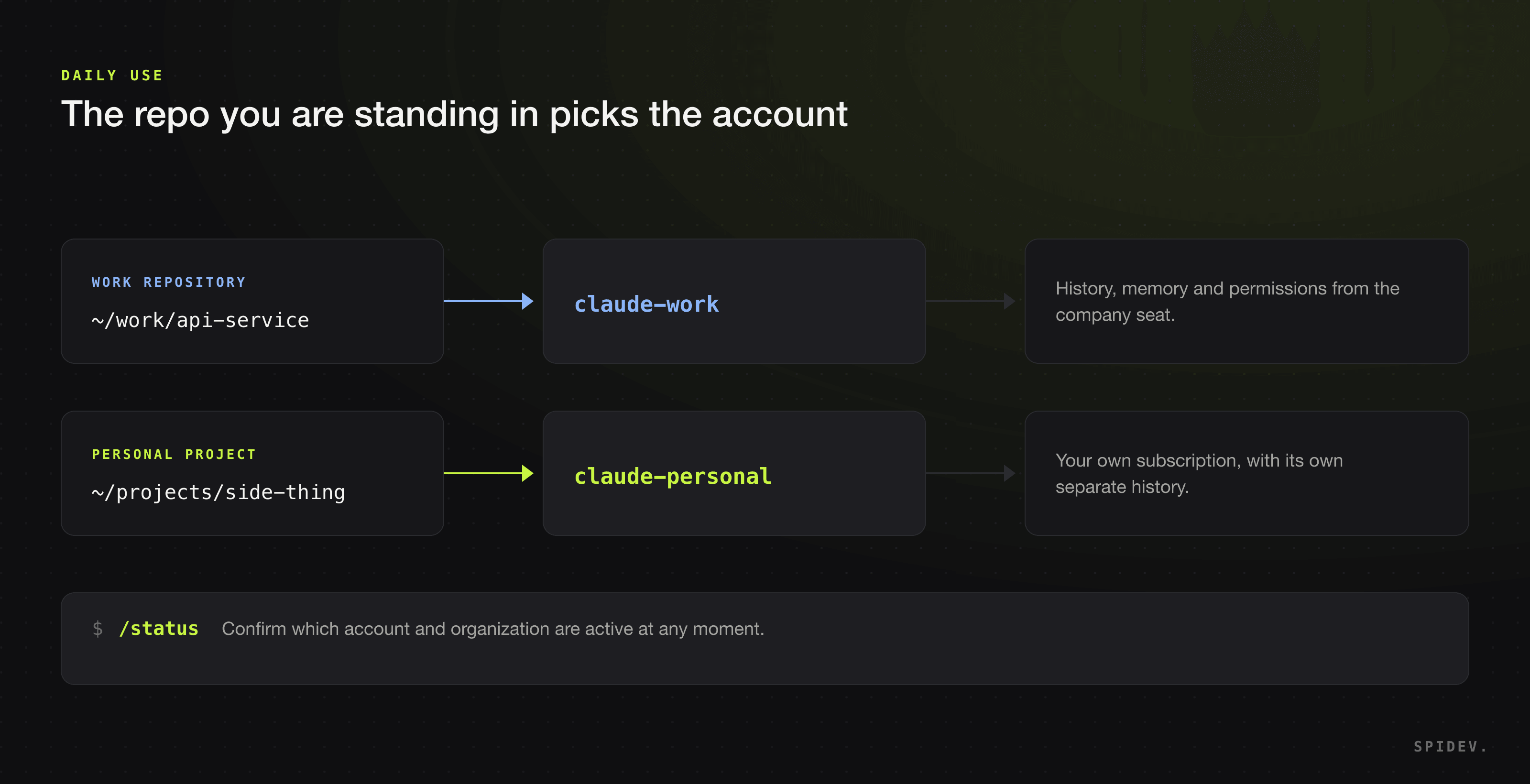
Open both aliases, run /status in each, and compare. Two different accounts means you are done. The same account in both means keep reading — you are in the macOS case.
The macOS detail almost no guide mentions
This is where the popular version of the technique gets imprecise. Most write-ups state flatly that each config directory keeps its own login. Anthropic's documentation is more specific than that.
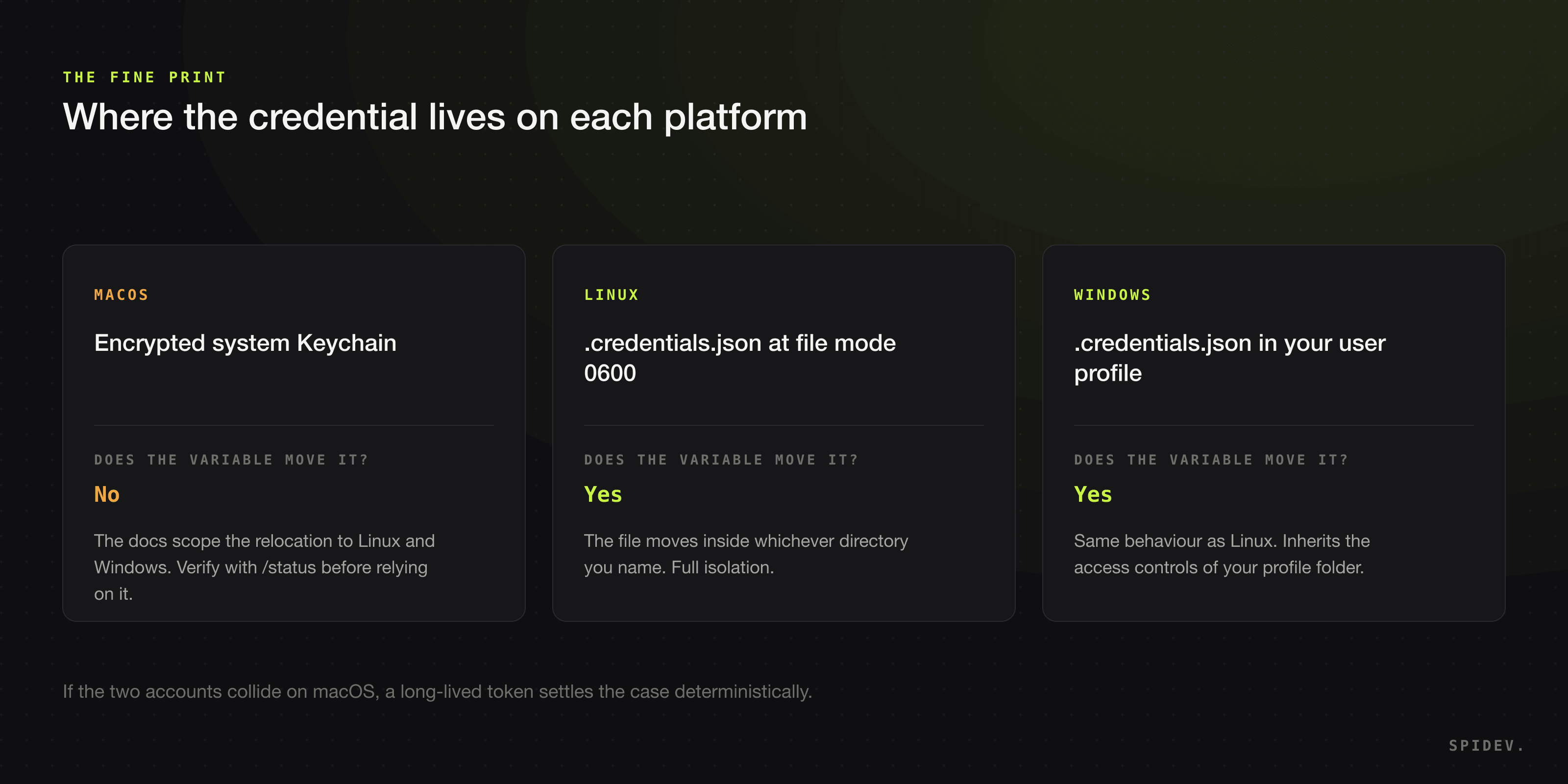
The authentication page lists where the credential lives per platform: on macOS, in the encrypted system Keychain; on Linux, in ~/.claude/.credentials.json at file mode 0600; on Windows, inside your user profile. Then it adds a sentence worth reading slowly:
If you've set theCLAUDE_CONFIG_DIRenvironment variable on Linux or Windows, the.credentials.jsonfile lives under that directory instead.
Linux and Windows. macOS is not in that sentence, and the environment variable reference says explicitly that on macOS credentials are in the system Keychain. In other words: on macOS the config directory separates your settings, history, transcripts, memory and plugins — everything in the list above — but the docs do not describe per-directory credential separation.
What to do about it, practically: test it rather than assume it. Run step 3. If /status shows two different accounts, there is nothing left to solve. If it shows the same one, the fix below is deterministic.
If the two accounts collide: the token route
Claude Code can authenticate with a long-lived OAuth token that, per the docs, takes precedence over keychain-stored credentials. That turns the account into something defined per alias rather than per machine.
Generate one token per account. The command opens the same browser flow as /login and prints the token when you approve:
1claude setup-token
Then bind each token to its alias:
1alias claude-work='CLAUDE_CONFIG_DIR=~/.claude-work CLAUDE_CODE_OAUTH_TOKEN=$(security find-generic-password -s claude-token-work -w) claude'2alias claude-personal='CLAUDE_CONFIG_DIR=~/.claude-personal CLAUDE_CODE_OAUTH_TOKEN=$(security find-generic-password -s claude-token-personal -w) claude'
The token has limits worth knowing before you adopt it:
- It lasts one year and requires a Pro, Max, Team or Enterprise plan.
- It can only make model requests: it cannot establish Remote Control sessions or fetch claude.ai connectors.
- Renewing means generating a new one and restarting the session.
--baremode does not read it; there you needANTHROPIC_API_KEYor anapiKeyHelperinstead.
For most people on macOS the plain aliases are enough and this section is unnecessary. It is here for when they are not.
Windows and PowerShell
The alias syntax is zsh/bash, so it works as-is in Git Bash or WSL. In native PowerShell, use functions and add them to your profile ($PROFILE):
1function claude-work { $env:CLAUDE_CONFIG_DIR = "$HOME\.claude-work"; claude @args }2function claude-personal { $env:CLAUDE_CONFIG_DIR = "$HOME\.claude-personal"; claude @args }
Reload with . $PROFILE, then run /login once per command. On Windows the credential does move with the directory, so the isolation is complete from the start.
Making it automatic
Two aliases cover the common case, but if you spend all day hopping between folders you will eventually type the wrong one. A function that decides from the path removes that:
1# ~/.zshrc — one command that picks the account from where you are2claude() {3 case "$PWD/" in4 "$HOME"/work/*) export CLAUDE_CONFIG_DIR="$HOME/.claude-work" ;;5 *) export CLAUDE_CONFIG_DIR="$HOME/.claude-personal" ;;6 esac7 command claude "$@"8}
From then on you always type claude and the folder decides. Run /status the first time in each new repository to confirm it landed where you expected.
A bonus: naming the project directory
If you share paths across accounts, CLAUDE_CODE_PROJECT_DIR_NAME (from version 2.1.234) lets you choose the name that session's transcripts and memory are stored under, instead of deriving it from the working directory path:
1CLAUDE_CONFIG_DIR=~/.claude-work CLAUDE_CODE_PROJECT_DIR_NAME=api-service claude
It is ignored when CLAUDE_CONFIG_DIR is unset, and it is only read from the environment you start claude from.
Moving an account you already have
If you have been using Claude Code with a single account for months, do not start from scratch: copy the existing directory to the new name and leave ~/.claude for the second account.
1cp -R ~/.claude ~/.claude-work2claude-work # /status to confirm the history and memory came along
Copy rather than move until you have verified everything is in place. On Linux and Windows the credential travels with the folder; on macOS you will need to /login again in at least one of the two aliases.
What this does not separate
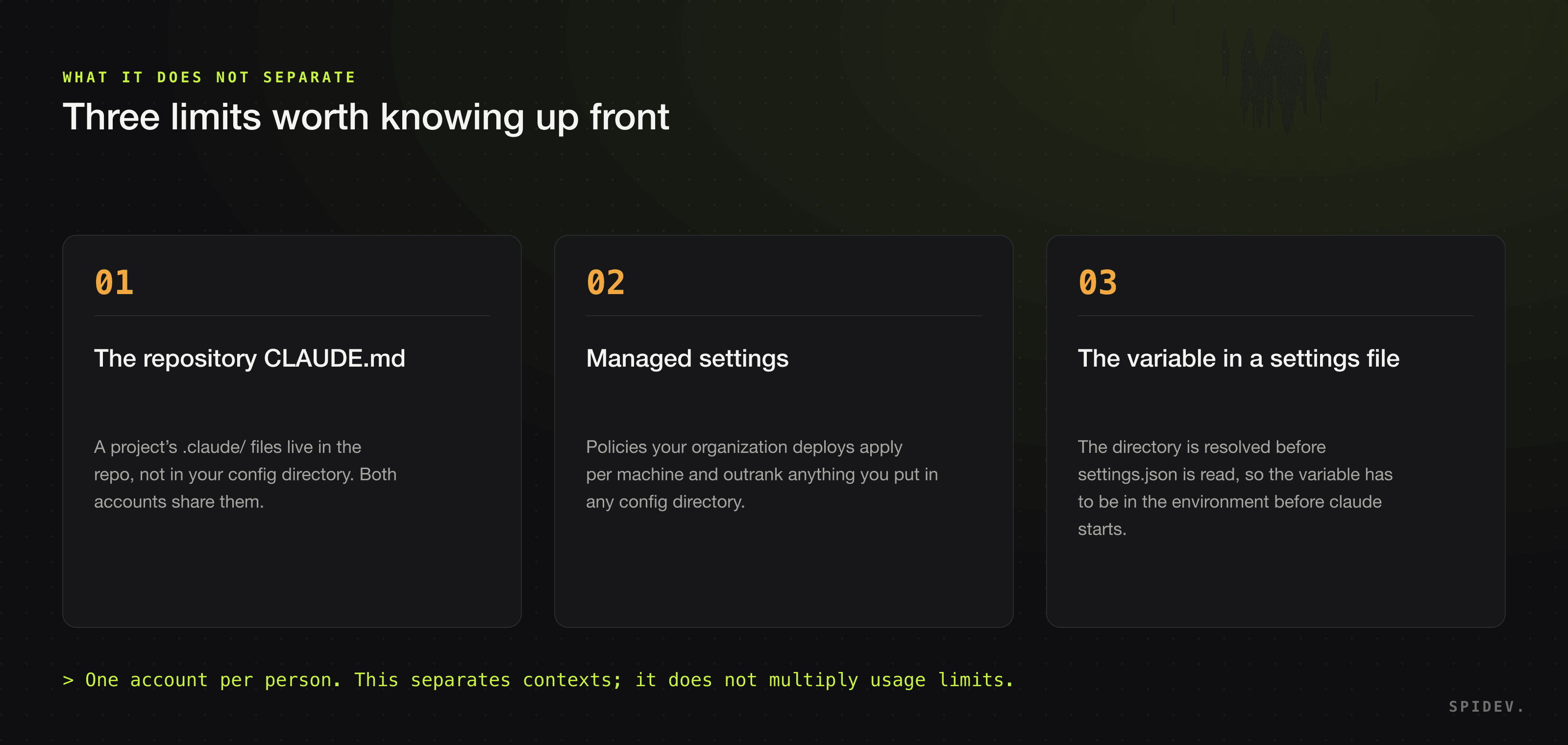
Three limits worth being clear about up front, because they explain nearly every second-week surprise:
- Repository files. A project's
CLAUDE.mdand.claude/folder live in the repo. Both accounts read them the same way, and they should: that is project context, not yours. - Managed settings. Policies your organization deploys apply at the machine level and outrank anything you put in any config directory.
- Transcripts are not encrypted. Whatever passes through a tool is written in plaintext under
projects/. Separating directories keeps them from mixing, not from existing: if a client requires that nothing is left behind, tunecleanupPeriodDaysor useclaude project purge.
If something does not work
- Both aliases show the same account. That is the macOS case above. Use the token route.
- The alias is gone after restarting the terminal. The line went into the wrong file. On macOS with zsh it is
~/.zshrc, not~/.bash_profile. - It starts as if it were the first run. Expected: a fresh directory has no state. Go through onboarding once and it sticks.
- Your history disappeared after switching. It did not — it is in the other directory. Start the other alias and up-arrow works again.
- A login-expiry warning. Claude Code warns three days ahead. Run
/loginin the alias it belongs to; nothing is blocked until it actually expires.
Before you do this: an honest note
This separates contexts between two accounts that are already yours. It is not a way to multiply usage limits or share one subscription across several people: the terms are one account per person, and a company seat usually comes with a policy about what you may use it for. Check that policy before pointing your work seat at a personal project.
If the problem you are actually solving is that several people on the team share one login, the answer is not aliases: it is a Team or Enterprise plan with a seat per person, central billing and managed policies.
Further reading
- Claude Code environment variables — the definitions of
CLAUDE_CONFIG_DIRandCLAUDE_CODE_PROJECT_DIR_NAME. - Authentication and credential management — where the login lives per platform and the precedence order between credentials.
- The ~/.claude directory — the full inventory of what is stored and for how long.
Frequently asked questions
Can you use two Claude Code accounts on the same computer?
Yes. Claude Code keeps each account's state in a config directory, and the CLAUDE_CONFIG_DIR environment variable decides which one it uses. With one alias per account (for example claude-work and claude-personal), each keeps its own settings, history, transcripts, project memory and plugins separately, from a single Claude Code installation.
What exactly does CLAUDE_CONFIG_DIR do?
It overrides the configuration directory, which defaults to ~/.claude. All settings, session history and plugins are stored under that path, as are credentials on Linux and Windows. On macOS credentials live in the system Keychain. The variable has to be in the environment before you launch claude: putting it in the env block of a settings.json file does not work.
Does it work the same on macOS as on Linux and Windows?
Not quite. On Linux and Windows the docs state that the .credentials.json file moves inside the directory you name, so the isolation is complete. On macOS credentials live in the system Keychain, and the docs scope that relocation to Linux and Windows. Everything else — settings, history, transcripts, memory and plugins — is separated on all three platforms. Check your own case by running /status inside each alias.
What if both accounts still show the same login on macOS?
Generate a long-lived token per account with claude setup-token and export it as CLAUDE_CODE_OAUTH_TOKEN inside each alias, since it takes precedence over keychain-stored credentials. Store each token in the Keychain or your password manager and read it from there; do not write it in plaintext into ~/.zshrc. Note that the token lasts one year and can only make model requests.
Do you lose your history when switching accounts?
No. Each directory keeps its own history.jsonl, its transcripts under projects/ and its auto memory. When you go back to the other alias, up-arrow recall and project memory are exactly where you left them. That is precisely the advantage over logging out and back in, which also resets your first-launch setup state.
What does not get separated by using different directories?
Three things. A repository's CLAUDE.md and .claude/ folder, because they live in the project rather than in your config directory. Managed settings deployed by your organization, which apply per machine. And the fact that transcripts are written in plaintext: separating directories keeps them from mixing, not from existing.
Is this allowed under the terms of service?
Running two accounts that are already yours — your company seat and your personal subscription — on one machine is fine; it is the case Anthropic's own documentation calls out. What is not fine is sharing one subscription across several people or chaining accounts to extend usage limits. Also check your employer's policy on which projects you may use the work seat for.